2005
University of Illinois at Chicago, Electronic Visualization Laboratory
Basic Concept
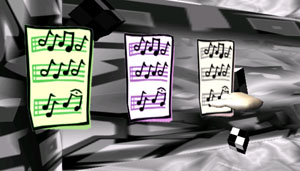
This project is an individual work about space, sound, and motion. Within a small cubic space, the user interacts with dozens of flying balls and boxes to create various spatial sound and realistic motion (movement). The main concept of this project is to give the user the metaphor to translate the relationship between sound and motion. The basic seven colors from spectral colors such as red, orange, yellow, green, blue, deep blue, and purple are mapped onto the primitive objects to emphasize the connection of a single sound tone. This application has three stages. The first is the initial environment that includes two icons of other stages. The second is Room 1 which represents the concept of "From motion to sound." The last is Room 2 which describes "From sound to motion." The user can select (click) the icon to enter each room environment from the initial stage.
Room 1: From Motion to Sound
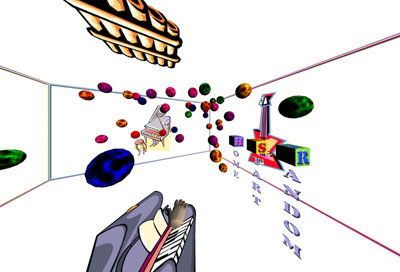
The way to make motion: move the colored balls. As balls move all around the space consisting of five different walls, some of them will collide against the wall. Each wall including ceiling and floor has its own musical instrument such as piano, wood bass, guitar, banjo, and pan flute. At the moment of collision, the ball makes the sound of a single tone of the musical instrument which is assigned to that wall. Every ball has its own sound tone. So, a wall will decide the instrument and the ball will decide the tone.
Room 2: From Sound to Motion
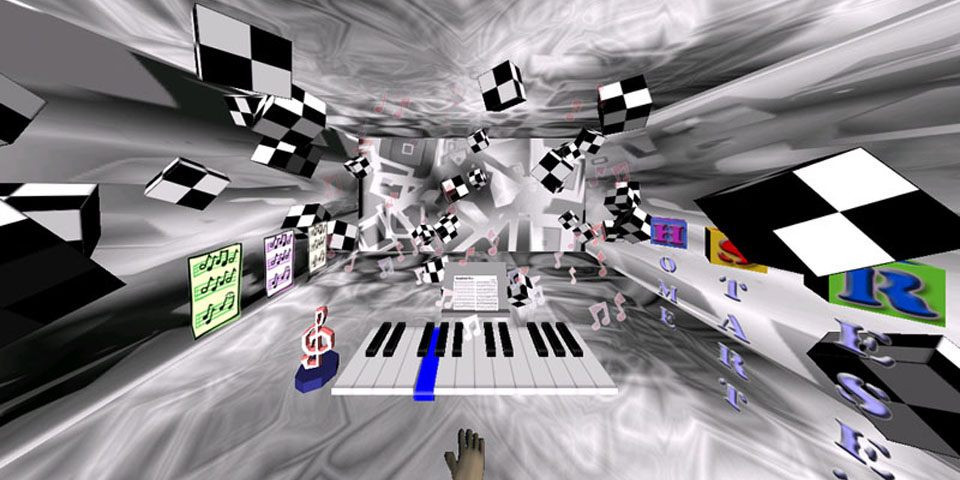
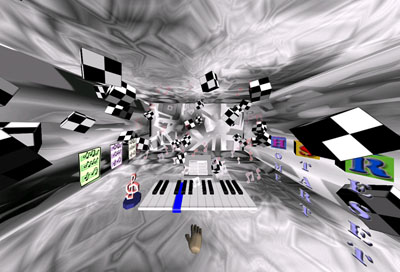
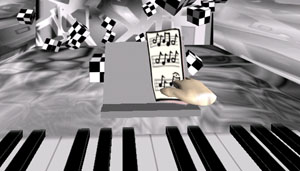
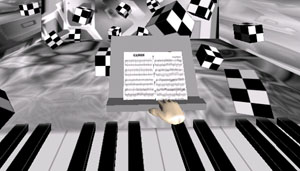
The way to make sound: play piano or play a music note automatically by piano. When the user plays piano, each piano key will send a message to a certain box that is linked to one key tone. Once the box receives a hit message from the piano key, it changes its color, plays sound, and gets random force to generate movement. The color scheme is the same as Room 1.
System Environment
Red Hat Linux 7.3 Operating System. CAVElib 3.0 and trackd 5.0. SGI Performer ver. 3.X. Ygdrasil ver. 0.1.11. ODE (Open Dynamics Engine) Library.
Video Document
Video Document
Scene Screenshots
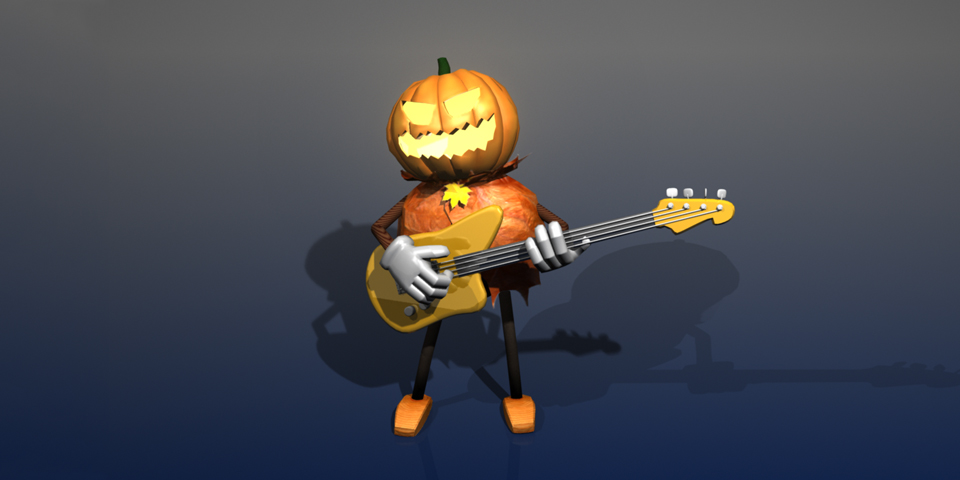
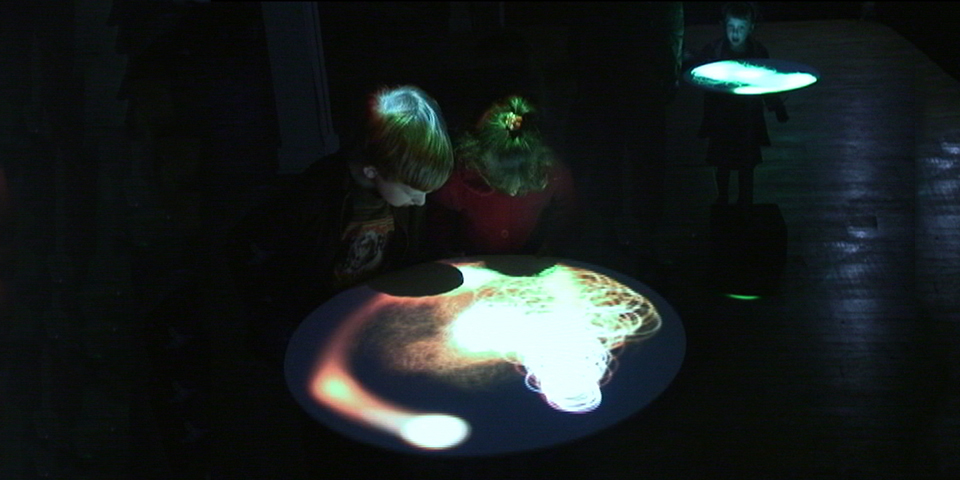
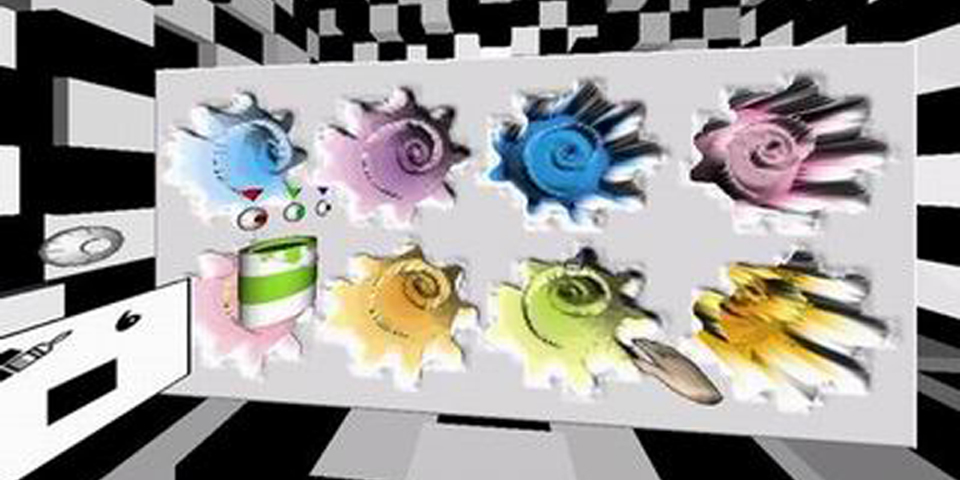
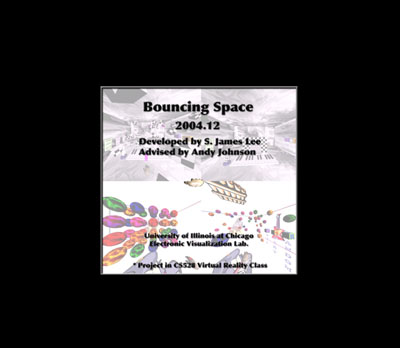
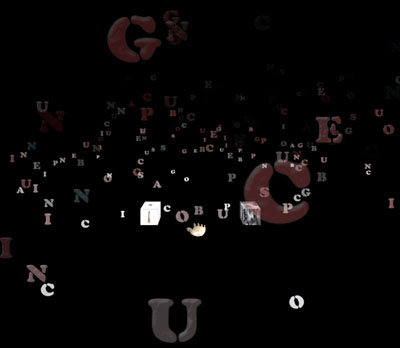
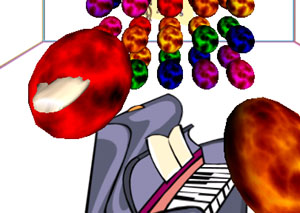
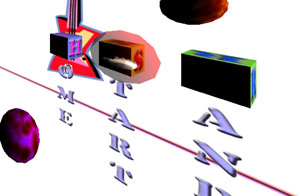
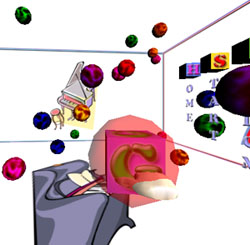
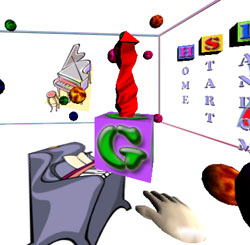
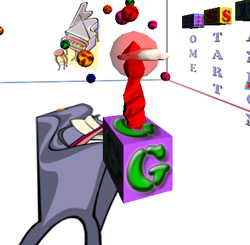
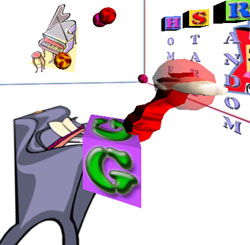
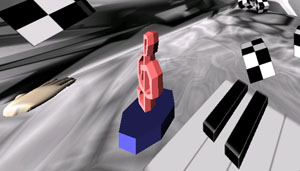
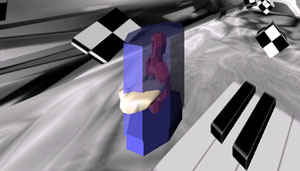
Four screenshots showing the introduction panel, initial environment, Room 1, and Room 2.
Interaction Details
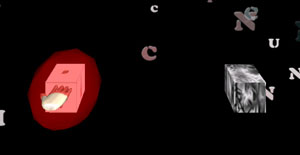
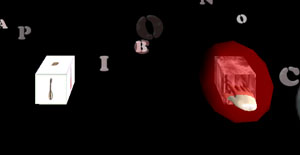
This application only uses left button (button1 in wanda controller) to click, grab, move, and throw objects in the environment. When the application is loaded, you encounter an introduction panel which includes project name and developer information. Click button1 to start the initial environment. If any object in the application is available to be clicked, you can see a sort of the bound sphere (red colored half transparent object) and hear an entering sound when the user hand intersects the object. Exceptions: In Room 1, balls do not have a bound sphere nor enter sound. In Room 2, music notes on the left side do not have a bound box because of sorting of transparent objects.
Room 1 Interactions: From Motion to Sound
The main interaction of this room is to make balls move to generate sound. There are two ways to do this. One is to grab and throw the ball directly. The other is to use the gravity controller which sets the gravity vector to the dynamics node. As common controllers, there are three icons — Home, Start, Random. If you click these, you can go back to the initial environment (Home icon), toggle (start/stop) dynamics simulation (Start), and randomize position and speed of all balls (Random). Note: Once you grab a certain ball, that ball will be removed from the dynamics engine during your grabbing. This means that you cannot make this ball collide against any other ball nor wall. Only when balls fly, they make collisions. To throw the ball, first move your hand to intersect the ball object and click (hold your button pressed). Then move your hand to the desired direction and release the button. Application will calculate movement speed and direction at the moment of release. Gravity controller locates in the center of the room. To activate the controller, click the gravity icon. A gravity arrow will pop up right after you click the icon. As you intersect your hand with the arrow head, you see the bounding sphere and you can drag and drop the arrow head as you want to produce the gravity. The gravity will be generated based on the direction and size of the arrow itself. If you want to zero or deactivate the gravity of the dynamics node, simply click the gravity icon one more time.
Room 2 Interactions: From Sound to Motion
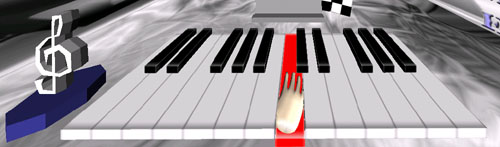
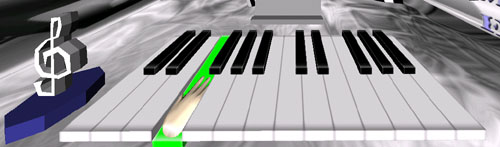
The main interaction of this room is to play piano by your hand itself or play the music note to generate movement of checker boxes. The common controllers are almost the same as Room 1 except Reset control instead of Random. Reset control will re-initialize the room environment (stop playing and stack boxes in initial position). To play the piano, hit the key with your hand (intersect). You do not need to use any button. To play a music note: #1 — Grab music note (click button1, just click once). #2 — Move note to stand (navigate to music note stand and move the note close to stand). #3 — You see the music note unfold (once the stand detects the note, it disappears and you get a new one on the stand and it unfolds). #4 — Clef's material changes from white to red repeatedly (this means that the piano is ready to play the note). #5 — Click the clef to toggle start/stop playing. When the piano starts playing the music note, it produces a bunch of note particles and plays by itself automatically.
Future Work
Support network collaboration — re-design initial environment to use teleport to a room instead of scaling the icon to share the room space. Make user avatars. Support Ygdrasil 0.4. Change the walls of Room 1 — make texture grids to give a color change on each part of wall when ball collides against that part.
References
Ygdrasil (www.evl.uic.edu/yg)
ODE (Open Dynamics Engine, www.ode.org)
Some images from MS ClipArts library
Some sound effects source from AudioSparx (www.audiosparx.com)